
Sharing your Internet connection is desirable for most people, but if you have neighbors, you might want to give some thought to wireless security. Hackers are getting smarter every day and so are security experts. The good news is that you don’t necessarily need the latest and greatest to have a reasonable degree of protection.
There are two ways to set up a wireless network. Your cable modem or DSL modem might have a wireless antenna on it or you might need a wireless router. Most wireless routers have the same features, plus a few extras. You need a minimum of WPA2 with AES for security. TKIP is the other protocol, but anyone with commonly available software can find your key in minutes if you use TKIP. AES is much more secure. You might also need a wireless adapter for your computer. Many laptops come with wireless capability. You will usually see something on your computer somewhere that looks like a picture of an antenna if you do. This might turn on and off. Make sure it is on before you connect. If you’re traveling with a laptop you might want to turn it off to save battery. If you need a wireless adapter, I recommend buying a USB wireless as it is easy to install and use.
Now that you have a router, plug the network plug into your router and into the Internet or WAN port on your wireless router. Plug your computer into another network cable and plug the other end of that into one of the numbered or LAN ports on your router. Next, follow the directions that come with your router to set it up.
<If you cannot find or don’t have directions, press the windows key and the R key. Type cmd and press enter. This will bring up a black window. Type ipconfig and you might need to use the scroll bar to find something like this:
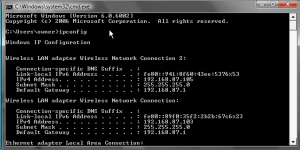
Open up a web browser and go to the address bar at the top left next to the arrows left and right and type in http://<the numbers such as 192.168.87.1 in the picture>>
Next, select a network name and pick auto for the channel if available or pick a high or low number, but don’t always use the default or your wireless and everyone else’s won’t work well together.
Make sure to pick WPA2 Personal or WPA2-PSK security with our AES encryption or WPA3 security. If you use WPA3, some older wireless devices won’t be able to connect.
Make sure you can connect to the Internet while plugged in.
Write down your key and network name and remember it. You’ll need it to set up your computer. Your network name is public and should be something that identifies you. Your key should be unique and a secret. Don’t use something common like your favorite team, as your neighbors will all be using your Internet in a week if you do. I can type mountaineers as the key on many of my neighbors wireless networks and it will work. Be creative.
Unplug the plug plugging your computer to the router.
Next, find the icon by your time that looks like two computers. If you put your mouse over it it will probably say wireless networks are available. If it doesn’t you might need a wireless adapter for your computer. I recommend a USB adapter because they’re easy to install. Click on it and pick connect to a network. Find your network name and double click it. Type your key and press connect. After a minute or two, you should be able to connect to the Internet.
Recent Comments